From Zero to Serving a Model on Kubernetes, on Your Own Machine
The article I wish I'd had a year or two ago.
If you ran Kubernetes for a living a few years back and you're coming back to it because of AI, most of what you knew still holds. Pods, Deployments, Services, PVCs: all the same. The new parts are getting a model onto the box and getting a GPU into a pod. If you've only used kubectl a bit, that's fine. Every command is here, and the terms get a line of explanation where they first come up.
Every "run an LLM on Kubernetes" tutorial I found either used a toy model on CPU or assumed a cloud account with a rack of H100s. This one runs on the laptop or desktop you already have. The output shown is what came back when I ran it, on the machines listed under "Tested on" below.
Some of these tools are mine
The guide uses two projects I built, because they're what I reach for when I set this up:
- llmfit works out which model will fit your hardware before you download anything. That's step 1.
- k8sgpt is a CNCF Sandbox project I created and still maintain. In step 5 it uses the model you've just served to diagnose problems in your cluster.
The Kubernetes parts are all stock kind, kubectl and Ollama, so if you'd rather use something else for either job, swap it in.
What your machine needs
On the CPU, Intel and AMD paths everything runs in one kind node. On NVIDIA, nvkind adds a GPU worker node next to the control plane. Either way the nodes are containers on your machine, so their capacity is your laptop or desktop's. On every path, the model server asks Kubernetes for the same things:
| Pod asks for | Amount |
|---|---|
| CPU | requests 4 cores, no limit |
| Memory | requests 4 GiB, limited to 8 GiB |
| Accelerator | nothing on CPU; one gpu.intel.com/xe, nvidia.com/gpu or amd.com/gpu on the GPU paths |
| Model volume | a 20 Gi PVC (kind's local-path storage doesn't enforce the size; the model takes 1.9 GB) |
And the accelerator and host setup each path needs:
| Path | Accelerator | Host side |
|---|---|---|
| CPU only | none | nothing extra |
| Intel Arc | Intel Arc / Xe graphics, integrated or discrete | xe kernel driver and /dev/dri. Older GPUs on i915 advertise gpu.intel.com/i915, so change the resource name in the manifest |
| NVIDIA | a GPU with CUDA compute capability 5.0 or newer (Ollama's GPU list) | NVIDIA driver 550 or newer, or 570 for compute capability 5.0 to 6.2 (nvidia-smi works), and the NVIDIA Container Toolkit configured for Docker |
| AMD | a Radeon or Instinct GPU on Ollama's ROCm list | amdgpu kernel driver, with /dev/kfd and /dev/dri present |
- CPU and RAM. The pod needs 4 cores and 4 GiB free on its node to schedule, and can then grow to 8 GiB. kind's own pods already request just under a core (950m on the control plane, 100m on nvkind's worker), and a kind node's capacity is the whole machine's, so you need at least 5 cores on every path. On a 4-core machine, or a 4-vCPU cloud VM, the pod sits in
PendingwithInsufficient cpu(the fix is in step 3). As a rule of thumb, 8 cores and 16 GB of RAM leaves room for your OS, Docker and the kind control plane as well; extra cores mainly speed up the CPU path. Both machines I tested on had plenty: the Framework 13 has 16 cores and 62 GB, and the Framework desktop has 32 threads and 62 GB of system RAM, with another 64 GB set aside for the GPU. - GPU memory. Integrated GPUs and APUs (the Arc B390, the Radeon 8060S) use system memory, and Ollama sees the GPU's pool rather than the pod's 8 GiB limit: 46.7 GiB on the laptop, 64 GiB on the desktop. The pod's memory limit doesn't cap GPU memory on these chips.
llama3.2:3bused 1.9 GB of weights plus its KV cache, 3.1 GB in total on both Intel and AMD with the 8192-token context the GPU manifests set. On a discrete card it's the same 3.1 GB: on an NVIDIA T4,nvidia-smishowed 3,099 MiB in use, so a card with 4 GB of VRAM is enough for this model at that context. - Disk. Measured after my runs: the kind node image is 1.34 GB, the node's own image store grew to 5.8 GB with
ollama/ollama:0.40.13(Intel laptop) and 4.1 GB withollama/ollama:0.40.13-rocm(AMD desktop), and the model is 1.9 GB. Budget about 10 GB free. The downloads are 3.39 GB forollama/ollama:0.40.13(the CPU, Intel and NVIDIA image; it bundles CUDA), 1.45 GB for the-rocmimage, 0.39 GB forkindest/node:v1.37.0and 2.02 GB for the model. - OS and container runtime. Linux with Docker; I used Docker 29.7.2 on Fedora 43 and 44. kind also supports Podman. The GPU paths pass
/dev/dri(and/dev/kfdfor AMD) from the host into the node, so they need a Linux host. - Bigger models. All of the above is sized for a 3B model. For anything bigger, ask llmfit (step 1) what fits your pod's limits, then raise the memory limit and disk to match.
Pick your hardware once and every hardware-specific step on this page switches to match. Your choice is remembered.
Tested on: Framework 13 (Intel Core Ultra X7 358H, 16 cores, 62 GB RAM, Intel Arc B390), Fedora 44, kernel 7.1.13, Docker 29.7.2, kind v0.33.0, Kubernetes v1.37.0 (kindest/node:v1.37.0), Ollama 0.40.13, model llama3.2:3b (Q4_K_M). The AMD path was run on a Framework desktop (Ryzen AI Max+ 395, Radeon 8060S, gfx1151), Fedora 43, kernel 7.1.8, same kind, node image and Ollama versions. The NVIDIA path was tested on another PC, and re-run from scratch on 3 November 2026 on an AWS EC2 g4dn.xlarge (Tesla T4, 16 GB VRAM, 4 vCPU, 16 GB RAM) with the AWS Deep Learning Base OSS NVIDIA Driver AMI (Ubuntu 24.04, driver 595, NVIDIA Container Toolkit 1.20.1, Docker 29.9.2). That run needed the device plugin fix now in step 3, and the lower CPU request, because the VM has only 4 vCPUs. The CPU path was re-run from scratch on 3 November 2026 on an AWS EC2 m7i.2xlarge (8 vCPU, 32 GB), Ubuntu 24.04, kernel 7.0, Docker 29.9.2, and worked as written.
Versions verified on 2 November 2026. See the version table at the end.
Do one path, top to bottom.
What you need
- Docker (or Podman). kind runs each Kubernetes node as a container.
- kind v0.33.0, kubectl v1.37.x and helm v4.3.1. kubectl supports one minor version either side of the server, so a 1.35 kubectl can misbehave against these 1.37 clusters.
kubectl version --clientshould show 1.36 or 1.37 (1.38 is still in alpha). - llmfit v1.1.18, to pick a model that will actually fit your hardware. (Yes, I wrote it.)
- k8sgpt v0.4.41, for the last step, when your model debugs your cluster. (I created and maintain that one too.)
- k9s v0.51.0, optional, but it's the nicest way to watch a cluster.
- jq, to read the JSON that comes back (
sudo dnf install jqorsudo apt install jq), and python3, whichbench.shuses (most distros already have it). - About 10 GB of free disk and a decent connection (see what your machine needs for the breakdown).
I keep everything in one directory, binaries included, so nothing touches my main kubeconfig or system. Clone this guide's repo, because the cluster configs (kind-local-llm*.yaml), the manifests and bench.sh all live in it:
git clone https://github.com/AlexsJones/axjns-k8s-local-llm ~/Code/axjns-k8s-local-llm
cd ~/Code/axjns-k8s-local-llm && mkdir -p bin
export PATH=$PWD/bin:$PATH
export KUBECONFIG=$PWD/kubeconfig   # this cluster gets its own kubeconfig file
curl -sSLo bin/kind https://kind.sigs.k8s.io/dl/v0.33.0/kind-linux-amd64 && chmod +x bin/kind
curl -sSLo bin/kubectl https://dl.k8s.io/release/v1.37.2/bin/linux/amd64/kubectl && chmod +x bin/kubectl
curl -sSL https://get.helm.sh/helm-v4.3.1-linux-amd64.tar.gz | tar -xz -C bin --strip-components=1 linux-amd64/helm
curl -sSL https://github.com/AlexsJones/llmfit/releases/download/v1.1.18/llmfit-v1.1.18-x86_64-unknown-linux-gnu.tar.gz | tar -xz -C bin --strip-components=1 llmfit-v1.1.18-x86_64-unknown-linux-gnu/llmfit
curl -sSL https://github.com/k8sgpt-ai/k8sgpt/releases/download/v0.4.41/k8sgpt_Linux_x86_64.tar.gz | tar -xz -C bin k8sgpt
curl -sSL https://github.com/derailed/k9s/releases/download/v0.51.0/k9s_Linux_amd64.tar.gz | tar -xz -C bin k9s   # optional
kind version && kubectl version --client && helm version --short && llmfit --version && k8sgpt version
kind v0.33.0 go1.26.7 linux/amd64
Client Version: v1.37.2
Kustomize Version: v5.8.1
v4.3.1+gc0d08d0
llmfit 1.1.18
k8sgpt: 0.4.41 (3644ecf), built at: unknown
Every command from here on runs from this directory. If you open a new terminal, cd ~/Code/axjns-k8s-local-llm and run the two export lines again, or kubectl will talk to whatever cluster your default kubeconfig points at.
Those downloads are for Linux on x86_64. On a Mac, brew install kind kubectl helm k9s llmfit k8sgpt jq (all in Homebrew core), still clone the repo, and follow the CPU tab. Docker on macOS runs containers in a Linux VM, so it can't pass the Mac's GPU through. Check kind version says v0.33.0.
Step 1: pick a model with llmfit
People skip this. Then they lose an afternoon. The usual way it goes wrong: you download a model that doesn't fit, and it either won't load or spills out of GPU memory onto the CPU and crawls. llmfit checks before you download anything. It detects your CPU, RAM, memory bandwidth and GPU, then scores thousands of models on whether they fit, how fast they'll run, and which quantisation to use. Quantisation stores the weights in fewer bits, so the model is smaller and faster for a small loss in quality. Q4_K_M is about 4 bits per weight, and it's the usual default.
Start by asking it what it sees:
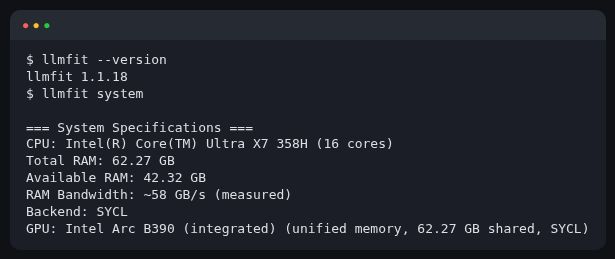
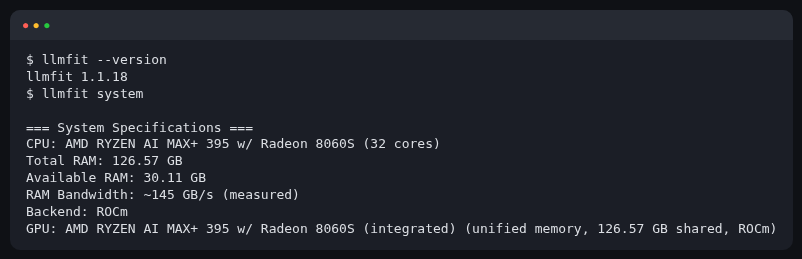
llmfit system
On my Framework 13 laptop it finds the Arc B390 and the shared memory:
On my Framework desktop it finds the Radeon 8060S and picks the ROCm backend:
Then ask for a shortlist. llmfit fit ranks every model it knows against your machine; I've filtered it to the big model families so the list is readable:
llmfit fit -n 8 --providers meta,google,alibaba --sort score
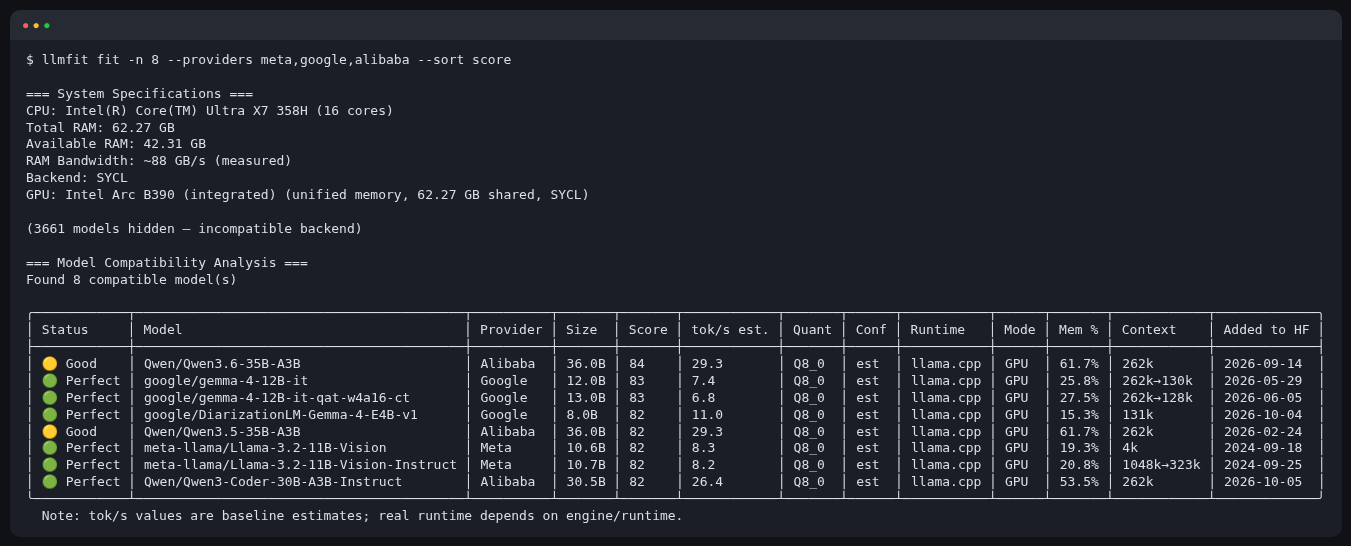
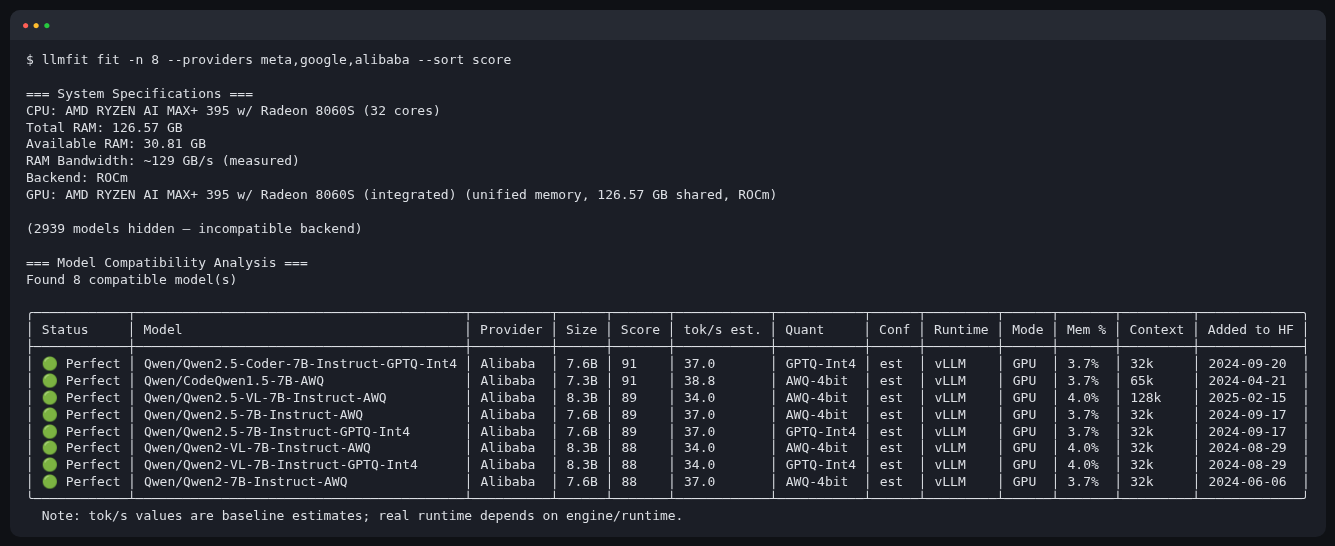
Same command, two machines, two different answers. The right model depends on the box. Run llmfit with no arguments for the interactive version, where you can search, filter and sort.
One Kubernetes catch: the model only gets the pod's memory limit. So ask llmfit about the pod, not the laptop. The model server gets an 8 GiB memory limit and asks for 4 CPU cores (a request, not a limit; more on that in step 3), so pass those in with --ram 8G --cpu-cores 4 and check a small Llama:
llmfit --ram 8G --cpu-cores 4 info meta-llama/Llama-3.2-3B-Instruct
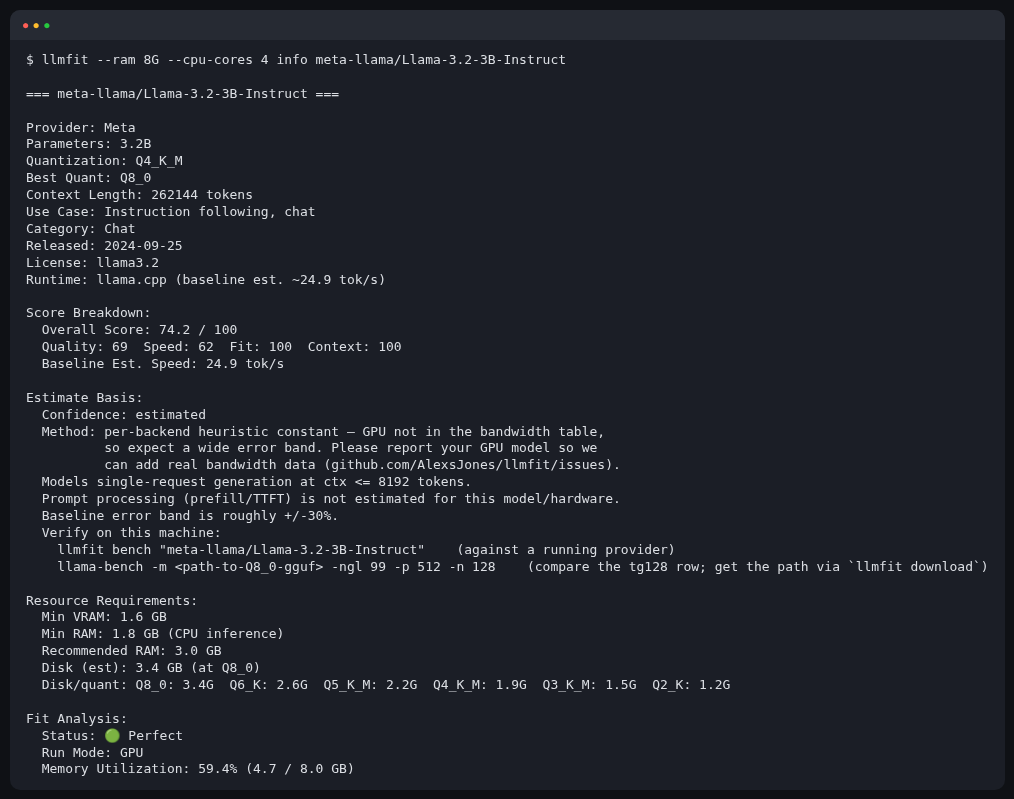
The lines that matter are at the bottom: at Q4_K_M it needs about 2 GB, it's a 🟢 Perfect fit in 8 GiB, and llmfit gives a baseline speed estimate you can check later against the real number. On a machine with no GPU, the same command rates it 🟡 Good rather than Perfect, because CPU inference is slow, and suggests Q8_0 because there's room for it. It still fits, and Ollama's llama3.2:3b is Q4_K_M either way. A 3B model is small, but it's good enough to hold a conversation and it runs on everything on this page, so that's what we'll use. Ollama calls it llama3.2:3b. llmfit --ram 8G --cpu-cores 4 recommend --use-case chat gives you a shortlist if you want something else.
Going further: llmfit-dra takes the same fit maths into the cluster as a Dynamic Resource Allocation driver. You ask for a model and a minimum tok/s, and the stock scheduler places the pod on a device that can actually deliver it. Overkill for one node.
Why Ollama and not vLLM? On one box without a datacenter GPU, Ollama is less work. The same image runs on CPU, Intel (Vulkan) and NVIDIA (CUDA), AMD gets a -rocm tag, it has an OpenAI-compatible endpoint, and it pulls models by name. vLLM is the answer on real NVIDIA boxes serving lots of users at once. Its CPU build exists, but it's a lot more fiddly for a first run.
Step 2: create the cluster
One node is plenty (nvkind adds a GPU worker on NVIDIA; see that tab). The node image is pinned by digest so you get exactly what I tested.
kind-local-llm-cpu.yaml has no device mounts:
kind: Cluster
apiVersion: kind.x-k8s.io/v1alpha4
name: local-llm
nodes:
  - role: control-plane
    # newest kind node image as of Nov 2026 (kind v0.33.0)
    image: kindest/node:v1.37.0@sha256:a1ed56cfb0e7b93589bdf97c8cd566405a265939e3620fc4f5de89adff580ae5
kind create cluster --config kind-local-llm-cpu.yaml --kubeconfig ./kubeconfig
kubectl wait --for=condition=Ready node --all --timeout=120s
kubectl get nodes -o wide
It takes 10 to 20 seconds once the node image is cached. The first run downloads it first: 0.39 GB, 1.34 GB unpacked.
kind-local-llm.yaml passes the GPU's render device (/dev/dri) into the node, which the Intel device plugin needs in step 3:
kind: Cluster
apiVersion: kind.x-k8s.io/v1alpha4
name: local-llm
nodes:
  - role: control-plane
    # newest kind node image as of Nov 2026 (kind v0.33.0)
    image: kindest/node:v1.37.0@sha256:a1ed56cfb0e7b93589bdf97c8cd566405a265939e3620fc4f5de89adff580ae5
    extraMounts:
      - hostPath: /dev/dri
        containerPath: /dev/dri
kind create cluster --config kind-local-llm.yaml --kubeconfig ./kubeconfig
kubectl wait --for=condition=Ready node --all --timeout=120s
kubectl get nodes -o wide
Creating cluster "local-llm" ...
 ✓ Ensuring node image (kindest/node:v1.37.0) 🖼️
 ✓ Preparing nodes 📦
 ✓ Writing configuration 📜
 ✓ Starting control-plane 🕹️
 ✓ Installing CNI 🔌
 ✓ Installing StorageClass 💾
Set kubectl context to "kind-local-llm"
...
node/local-llm-control-plane condition met
NAME                      STATUS   ROLES           AGE   VERSION   ...   OS-IMAGE                       KERNEL-VERSION                   CONTAINER-RUNTIME
local-llm-control-plane   Ready    control-plane   ...   v1.37.0   ...   Debian GNU/Linux 13 (trixie)   7.1.13-200.fc44.x86_64 (amd64)   containerd://2.3.4
My first run took 141 seconds because it was downloading the node image (0.39 GB, 1.34 GB unpacked). With the image cached it's 10 to 20 seconds. The screenshot is from that first run, a few seconds before the node went Ready.
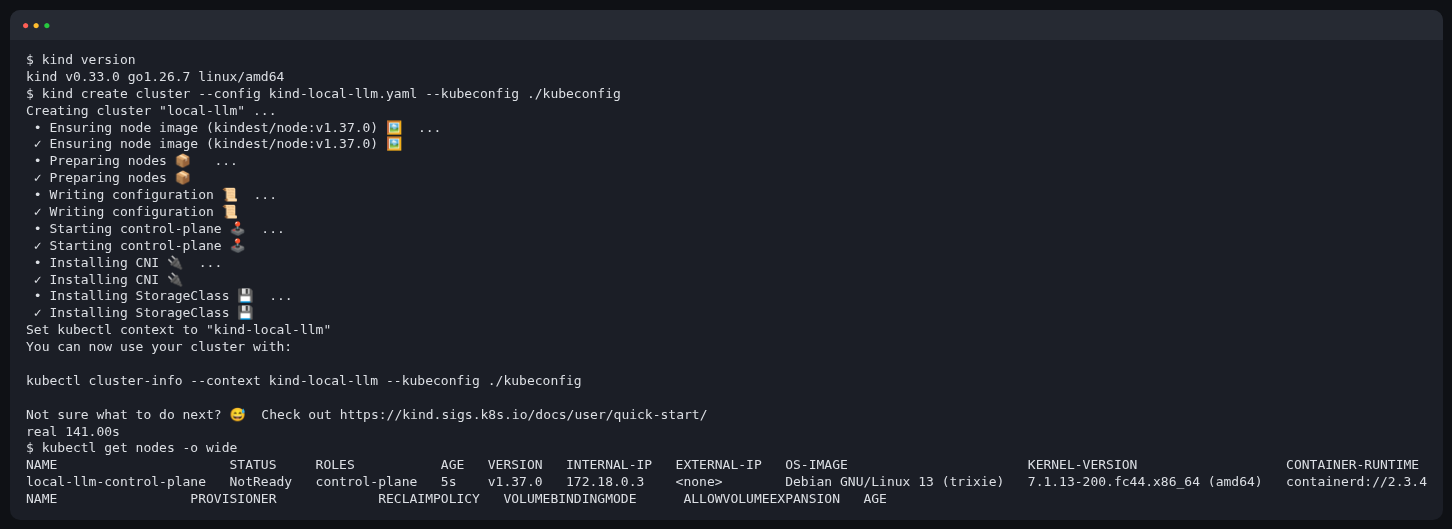
This follows NVIDIA's own nvkind docs.
GPUs in kind are awkward with NVIDIA because the node is itself a container. The NVIDIA runtime has to inject the GPU into the node, and then the node's containerd needs the toolkit too. NVIDIA wrote nvkind to do both. You need a working driver (nvidia-smi -L works) and the NVIDIA Container Toolkit installed for Docker. Then, once, on the host:
sudo nvidia-ctk runtime configure --runtime=docker --set-as-default --cdi.enabled
sudo nvidia-ctk config --set accept-nvidia-visible-devices-as-volume-mounts=true --in-place
sudo systemctl restart docker
Then build nvkind into bin/ and create the cluster. nvkind has no tagged releases, so this pins the commit I wrote this against. go install needs Go 1.24 or newer; if you don't have Go, the commented line does the same build in a container:
GOBIN=$PWD/bin go install github.com/NVIDIA/nvkind/cmd/nvkind@c57050497cffee36f10c8b918d2727c4f26d886e
# no Go? docker run --rm -v $PWD/bin:/go/bin golang:1.26 go install github.com/NVIDIA/nvkind/cmd/nvkind@c57050497cffee36f10c8b918d2727c4f26d886e
nvkind cluster create --name local-llm --kubeconfig $PWD/kubeconfig \
  --image kindest/node:v1.37.0@sha256:a1ed56cfb0e7b93589bdf97c8cd566405a265939e3620fc4f5de89adff580ae5
kubectl wait --for=condition=Ready node --all --timeout=180s
kubectl get nodes
nvkind makes two nodes: the control plane, and a worker (local-llm-worker) that gets the GPUs. The model pod lands on the worker because it's the only node with nvidia.com/gpu. nvkind also installs the toolkit inside the worker and registers an nvidia RuntimeClass. A RuntimeClass tells Kubernetes which container runtime handler starts a pod; this one is NVIDIA's, which wires the GPU driver into the container. The manifest in step 3 uses it.
ROCm is AMD's GPU compute stack, its answer to CUDA. Every AMD GPU has a gfx target, the chip's instruction set (the 8060S is gfx1151), and ROCm only runs on targets it was built for. ROCm needs two device paths inside the node: the DRM render nodes (/dev/dri) and the ROCm compute interface (/dev/kfd). kind-local-llm-amd.yaml:
kind: Cluster
apiVersion: kind.x-k8s.io/v1alpha4
name: local-llm
nodes:
  - role: control-plane
    # newest kind node image as of Nov 2026 (kind v0.33.0)
    image: kindest/node:v1.37.0@sha256:a1ed56cfb0e7b93589bdf97c8cd566405a265939e3620fc4f5de89adff580ae5
    extraMounts:
      - hostPath: /dev/dri
        containerPath: /dev/dri
      - hostPath: /dev/kfd
        containerPath: /dev/kfd
Check the host first: ls -l /dev/kfd /dev/dri should show both, and rocminfo tells you your GPU's gfx target. On Fedora both rocminfo and rocm-smi come from the distro's rocminfo and rocm-smi packages; you only need them on the host for this check, the ROCm runtime itself ships inside the Ollama image.
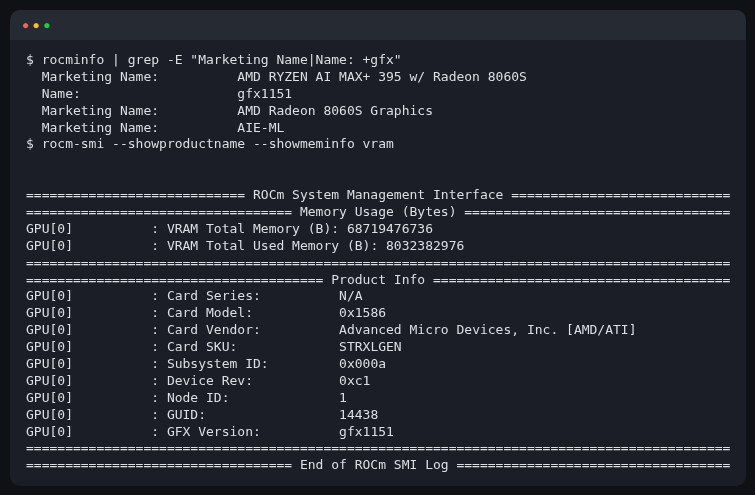
(rocm-smi also prints a harmless libdrm_amdgpu.so warning on Fedora 43, which I've left out of the screenshot.) Then:
kind create cluster --config kind-local-llm-amd.yaml --kubeconfig ./kubeconfig
kubectl wait --for=condition=Ready node --all --timeout=120s
kubectl get nodes -o wide
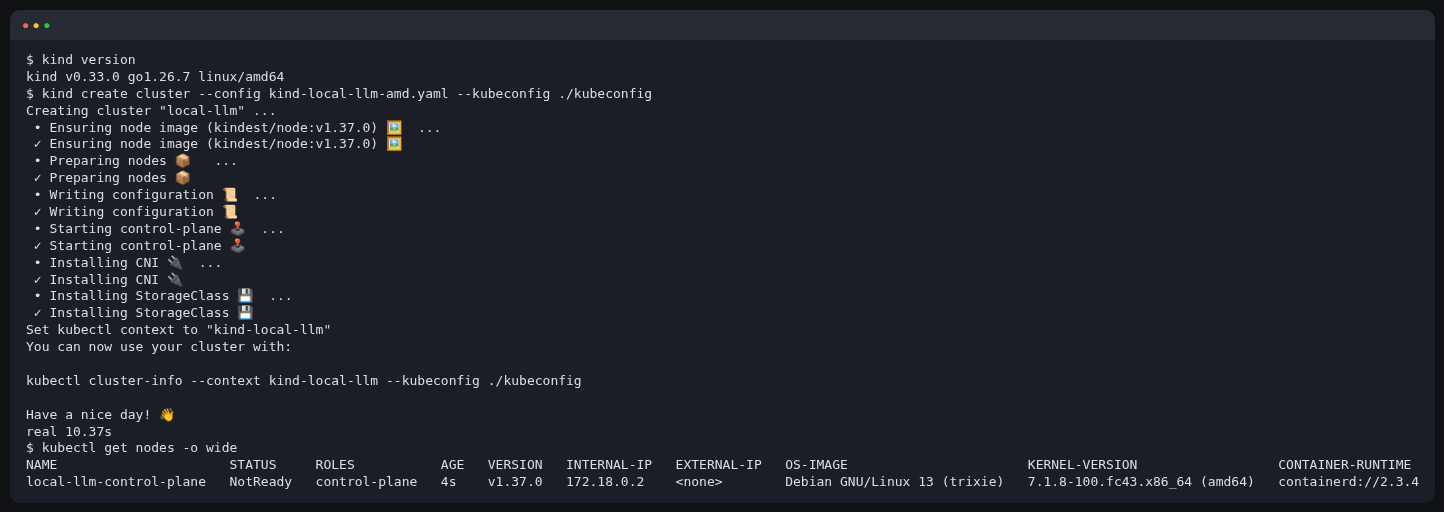
10 seconds, because the node image was already cached.
Step 3: serve the model
The whole thing is one Deployment, one PVC and one Service. A PVC (PersistentVolumeClaim) is a request for disk that outlives the pod. The part worth explaining is the init container. An init container runs to completion before the main container starts. This one starts Ollama, pulls the model into the PVC, and exits. The main container then starts with the model already on disk, and because it's on the PVC, restarts don't download 2 GB again. If Ollama doesn't come up within a minute, the init container prints its log and fails, so kubectl logs tells you why.
On the GPU paths you install a device plugin first. A device plugin is a DaemonSet that finds the GPU on the node and advertises it as a resource, like gpu.intel.com/xe, that a pod can ask for in its limits. Without one, the scheduler doesn't know the GPU exists.
manifests/cpu/10-ollama.yaml (the namespace is in 00-namespace.yaml):
apiVersion: v1
kind: PersistentVolumeClaim
metadata:
  name: ollama-models
  namespace: llm
spec:
  accessModes: ["ReadWriteOnce"]
  resources:
    requests:
      storage: 20Gi
---
apiVersion: apps/v1
kind: Deployment
metadata:
  name: ollama
  namespace: llm
  labels:
    app: ollama
spec:
  replicas: 1
  strategy:
    type: Recreate          # RWO volume, so don't run two at once
  selector:
    matchLabels:
      app: ollama
  template:
    metadata:
      labels:
        app: ollama
    spec:
      initContainers:
        - name: pull-model
          image: ollama/ollama:0.40.13
          command: ["/bin/sh", "-c"]
          args:
            - |
              ollama serve >/tmp/serve.log 2>&1 &
              i=0
              until ollama list >/dev/null 2>&1; do
                i=$((i+1)); [ "$i" -ge 60 ] && { echo "ollama serve didn't start:"; cat /tmp/serve.log; exit 1; }
                sleep 1
              done
              ollama pull "$MODEL"
          env:
            - name: MODEL
              value: llama3.2:3b
          volumeMounts:
            - name: models
              mountPath: /root/.ollama
      containers:
        - name: ollama
          image: ollama/ollama:0.40.13
          ports:
            - name: http
              containerPort: 11434
          env:
            - name: OLLAMA_KEEP_ALIVE
              value: "24h"          # keep the model in memory between requests
            - name: OLLAMA_NUM_PARALLEL
              value: "1"
          resources:
            requests:
              cpu: "4"
              memory: 4Gi
            limits:
              memory: 8Gi
          readinessProbe:
            httpGet:
              path: /api/tags
              port: http
            initialDelaySeconds: 5
            periodSeconds: 5
          livenessProbe:
            httpGet:
              path: /
              port: http
            initialDelaySeconds: 30
            periodSeconds: 20
          volumeMounts:
            - name: models
              mountPath: /root/.ollama
      volumes:
        - name: models
          persistentVolumeClaim:
            claimName: ollama-models
---
apiVersion: v1
kind: Service
metadata:
  name: ollama
  namespace: llm
spec:
  selector:
    app: ollama
  ports:
    - name: http
      port: 80
      targetPort: http
Notice there's a memory limit but no CPU limit. CPU limits on inference mostly just throttle you; the request is enough to tell the scheduler what you need.
kubectl apply -f manifests/cpu/
namespace/llm created
persistentvolumeclaim/ollama-models created
deployment.apps/ollama created
service/ollama created
Intel's GPU device plugin comes first. The Arc B390 uses the newer xe kernel driver, so the resource is gpu.intel.com/xe (older Intel GPUs on i915 get gpu.intel.com/i915):
kubectl apply -k 'https://github.com/intel/intel-device-plugins-for-kubernetes/deployments/gpu_plugin?ref=v0.37.1'
kubectl get node local-llm-control-plane -o jsonpath="{.status.allocatable}"
daemonset.apps/intel-gpu-plugin created
{"cpu":"16","ephemeral-storage":"1997604388864","gpu.intel.com/xe":"1","hugepages-1Gi":"0","hugepages-2Mi":"0","memory":"65296284Ki","pods":"110"}
gpu.intel.com/xe: 1. The cluster can see the GPU. No gpu.intel.com/xe? Check the plugin pod: kubectl get pods -A -l app=intel-gpu-plugin, then kubectl logs on it.

For the model server I used Ollama's Vulkan backend, which is in the normal ollama/ollama image. The manifest is the CPU one with a GPU limit and two extra settings, manifests/intel/10-ollama-vulkan.yaml:
          env:
            - name: OLLAMA_KEEP_ALIVE
              value: "24h"
            - name: OLLAMA_NUM_PARALLEL
              value: "1"
            - name: OLLAMA_IGPU_ENABLE
              value: "1"            # Ollama drops integrated GPUs that aren't on its allowlist; the Arc B390 isn't on it
            - name: OLLAMA_CONTEXT_LENGTH
              value: "8192"         # fixed context, so the KV cache stays small
          resources:
            requests:
              cpu: "4"
              memory: 4Gi
            limits:
              memory: 8Gi
              gpu.intel.com/xe: 1   # extended resources only need a limit; the request is set to match
The OLLAMA_IGPU_ENABLE line cost me a redeploy. Ollama only uses integrated GPUs on its allowlist (the Radeon 8060S on the AMD path is on it, the Arc B390 isn't). Without the setting, it finds the GPU and then ignores it:
time=2026-11-02T11:51:09.106Z level=INFO source=runner.go:405 msg="dropping integrated GPU; to enable, set OLLAMA_IGPU_ENABLE=1" id=0 library=Vulkan compute=0.0 name=Vulkan0 description="Intel(R) Graphics (PTL)" pci_id=0000:00:02.0
OLLAMA_CONTEXT_LENGTH fixes the context window, how many tokens of conversation the model holds at once, at 8192. The KV cache is the model's working memory for that context, and it grows with it. Left alone, Ollama sizes the context from the GPU memory it sees: 32,768 tokens on this laptop, with a 3,584 MiB KV cache. At 8192 the KV cache is 896 MiB and the speed is the same.
kubectl apply -f manifests/intel/
It's the same Deployment name and the same PVC as the CPU version, so if you did the CPU path first this just rolls the pod over and the model is already downloaded.
Install NVIDIA's device plugin so the node advertises nvidia.com/gpu. Two things the chart doesn't do for you on kind. First, it only schedules onto nodes labelled as having an NVIDIA GPU, and with no Node Feature Discovery in the cluster nothing sets that label, so you label the worker yourself. Second, the plugin pod needs the nvidia runtime class to see the driver, the same as the model pod:
kubectl label node local-llm-worker nvidia.com/gpu.present=true
helm upgrade -i nvidia-device-plugin https://nvidia.github.io/k8s-device-plugin/stable/nvidia-device-plugin-0.20.1.tgz \
  --namespace nvidia --create-namespace --set runtimeClassName=nvidia
kubectl -n nvidia rollout status ds/nvidia-device-plugin
kubectl get nodes -o custom-columns='NAME:.metadata.name,GPU:.status.allocatable.nvidia\.com/gpu'   # expect 1 on local-llm-worker
NAME                      GPU
local-llm-control-plane   <none>
local-llm-worker          1
No nvidia.com/gpu? Check the plugin with kubectl -n nvidia get ds,pods. If the DaemonSet shows DESIRED 0, the worker is missing the nvidia.com/gpu.present=true label. If the pod is in Error and kubectl -n nvidia logs on it says Failed to initialize NVML: ERROR_LIBRARY_NOT_FOUND, the chart was installed without --set runtimeClassName=nvidia. Run the helm upgrade line above again with it.
Pick one: the operator brings its own device plugin. If you want the full stack (device plugin, GPU feature discovery, DCGM metrics), install the GPU Operator v26.7.2 instead of the chart above, with the driver and toolkit turned off because the host already has them:
kubectl create namespace gpu-operator
kubectl label namespace gpu-operator pod-security.kubernetes.io/enforce=privileged --overwrite
helm upgrade -i nvidia-gpu-operator https://helm.ngc.nvidia.com/nvidia/charts/gpu-operator-v26.7.2.tgz \
  --namespace gpu-operator --wait \
  --set cdi.enabled=true --set driver.enabled=false --set toolkit.enabled=false \
  --set operator.runtimeClass=nvidia
The standard ollama/ollama image includes the CUDA backend. manifests/nvidia/10-ollama-cuda.yaml is the CPU manifest plus the nvidia runtime class, a GPU limit and the same 8192-token context as the other GPU paths:
    spec:
      runtimeClassName: nvidia   # nvkind registers this RuntimeClass (so does the GPU Operator)
      ...
            - name: OLLAMA_CONTEXT_LENGTH
              value: "8192"         # fixed context, so the KV cache stays small
          resources:
            requests:
              cpu: "4"
              memory: 4Gi
            limits:
              memory: 8Gi
              nvidia.com/gpu: 1   # extended resources only need a limit; the request is set to match
kubectl apply -f manifests/nvidia/
On a 4-vCPU machine, such as a g4dn.xlarge or another small cloud GPU VM, the pod stays Pending with Insufficient cpu (see what your machine needs). Lower the request to 2 cores; the GPU does the work, so it doesn't slow the model down:
kubectl -n llm set resources deploy/ollama -c ollama --requests=cpu=2
To check the GPU is actually being used, look for library=CUDA in the inference compute log line:
kubectl -n llm logs deploy/ollama | grep "inference compute"
AMD's device plugin advertises the GPU as amd.com/gpu:
kubectl apply -f manifests/amd/amdgpu-device-plugin.yaml
kubectl get node -o jsonpath="{.items[0].status.allocatable}"

"amd.com/gpu":"1". The cluster can see the GPU. No amd.com/gpu? Check the plugin pod: kubectl -n kube-system get pods -l name=amdgpu-dp-ds, then kubectl logs on it. manifests/amd/amdgpu-device-plugin.yaml is AMD's k8s-ds-amdgpu-dp.yaml at tag v1.31.0.11, with the image pinned to rocm/k8s-device-plugin:1.31.0.11. The AMD GPU Operator (v1.5.1) is the heavier alternative if you also want metrics and node labelling.
Ollama publishes a ROCm build of the same image. manifests/amd/10-ollama-rocm.yaml is the CPU manifest with the image swapped to ollama/ollama:0.40.13-rocm, a GPU limit, and one extra setting:
          env:
            - name: OLLAMA_KEEP_ALIVE
              value: "24h"
            - name: OLLAMA_NUM_PARALLEL
              value: "1"
            - name: OLLAMA_CONTEXT_LENGTH
              value: "8192"         # don't let Ollama size the context from 64 GiB of VRAM
          resources:
            requests:
              cpu: "4"
              memory: 4Gi
            limits:
              memory: 8Gi
              amd.com/gpu: 1   # extended resources only need a limit; the request is set to match
Why OLLAMA_CONTEXT_LENGTH? It fixes the context window, how many tokens of conversation the model holds at once. The KV cache is the model's working memory for that context, and it grows with it. Ollama picks a default context from how much GPU memory it sees, and on a Strix Halo (AMD's Ryzen AI Max chips, where the GPU shares a big pool of system memory) it sees 64 GiB. On my first run it chose a 131,072-token context for a 3B model and reserved a 14 GiB KV cache to go with it, so a 2 GB model was holding 17 GB of GPU memory. Pinning the context to 8192 tokens dropped the KV cache to 896 MiB and the whole model to 3.1 GB. Speed stayed about the same: 85 tok/s, against 90 before. If you need long prompts, raise it.
kubectl apply -f manifests/amd/
The first start is slow because two big downloads happen back to back: the Ollama image (3.4 GB, 10m21s on my connection; the -rocm image is 1.45 GB) and then the model (2 GB). Watch it with:
kubectl -n llm get pods -w                            # Ctrl-C to stop watching
kubectl -n llm logs deploy/ollama -c pull-model -f    # the model download, once the image is pulled
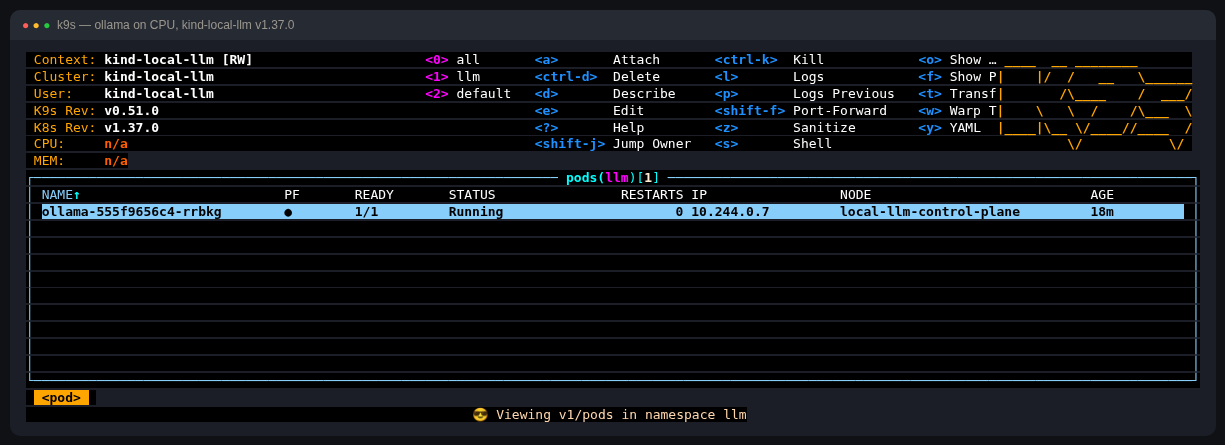
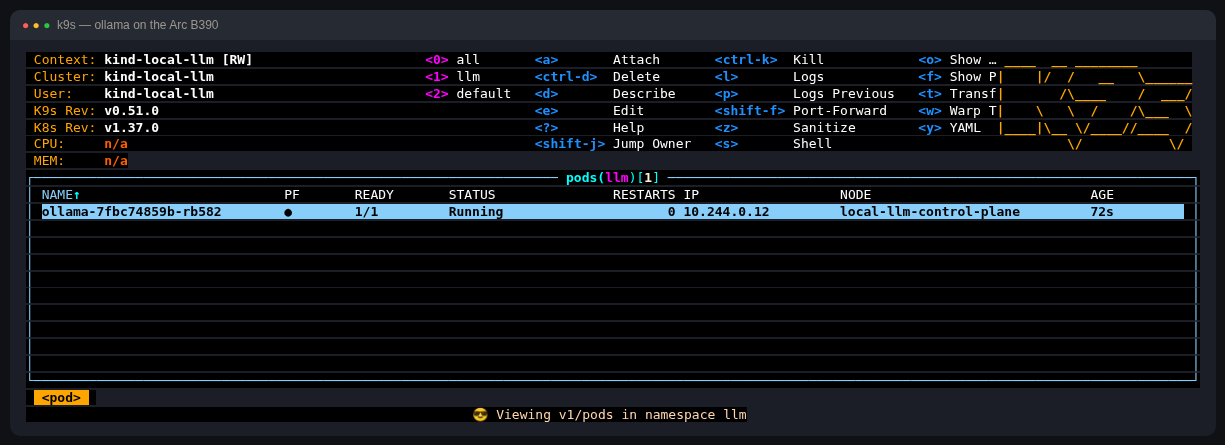
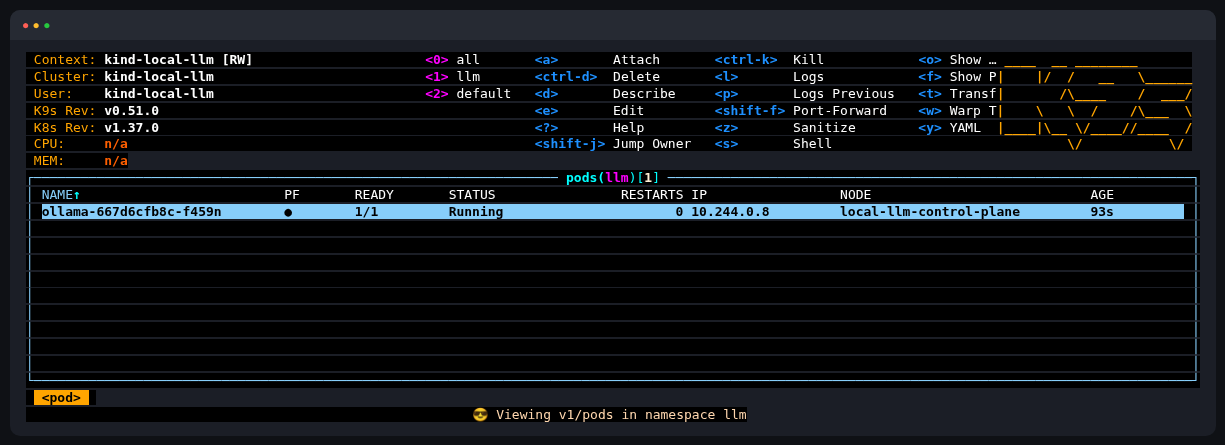
Init:0/1 is normal while the image and the model download. It's done when the pod shows 1/1 Running. If it sits in Pending or ImagePullBackOff, run kubectl -n llm describe pod -l app=ollama and read the Events at the bottom. On a GPU path, Pending usually means the node isn't advertising the GPU yet. If the event says 0/1 nodes are available: 1 Insufficient cpu, the machine has fewer than 5 cores (see what your machine needs). Lower the request and it schedules, just slower: kubectl -n llm set resources deploy/ollama -c ollama --requests=cpu=2.
When it's done:
$ kubectl -n llm get pods,svc,pvc
NAME                          READY   STATUS    RESTARTS   AGE
pod/ollama-555f9656c4-rrbkg   1/1     Running   0          16m

NAME             TYPE        CLUSTER-IP      EXTERNAL-IP   PORT(S)   AGE
service/ollama   ClusterIP   10.96.231.199   <none>        80/TCP    16m

NAME                                  STATUS   VOLUME                                     CAPACITY   ACCESS MODES   STORAGECLASS   ...
persistentvolumeclaim/ollama-models   Bound    pvc-f353ecaf-6860-4bb9-befc-78669359c084   20Gi       RWO            standard       ...
The log line that tells you what Ollama is running on:
$ kubectl -n llm logs deploy/ollama | grep "inference compute"
time=2026-11-02T11:46:14.148Z level=INFO source=types.go:50 msg="inference compute" id=cpu library=cpu compute="" name=cpu description=cpu libdirs=ollama driver="" pci_id="" type="" total="8.0 GiB" available="8.0 GiB"
total="8.0 GiB": Ollama read the pod's memory limit, not the laptop's 62 GB.
$ kubectl -n llm logs deploy/ollama | grep -E "inference compute|Vulkan"
time=2026-11-02T15:07:54.874Z level=INFO source=types.go:32 msg="inference compute" id=0 filter_id=0 library=Vulkan compute=0.0 name=Vulkan0 description="Intel(R) Graphics (PTL)" libdirs=ollama,vulkan driver=0.0 pci_id=0000:00:02.0 type=iGPU total="46.7 GiB" available="42.0 GiB"
library=Vulkan, Intel(R) Graphics (PTL). PTL is Panther Lake, so that's the Arc B390.
$ kubectl -n llm logs deploy/ollama | grep "inference compute"
time=2026-11-02T12:39:28.200Z level=INFO source=types.go:32 msg="inference compute" id=0 filter_id=0 library=ROCm compute=gfx1151 name=ROCm0 description="Radeon 8060S Graphics" libdirs=ollama,rocm_v7_2 driver=0.0 pci_id=0000:c3:00.0 type=iGPU total="64.0 GiB" available="63.8 GiB"
library=ROCm, compute=gfx1151, Radeon 8060S Graphics. ROCm found the GPU from inside the pod with no HSA_OVERRIDE_GFX_VERSION hacks: the ROCm 7.2 runtime in the Ollama image supports gfx1151 directly.
On the T4:
$ kubectl -n llm logs deploy/ollama | grep "inference compute"
time=2026-11-03T15:47:25.974Z level=INFO source=types.go:32 msg="inference compute" id=0 filter_id=0 library=CUDA compute=7.5 name=CUDA0 description="Tesla T4" libdirs=ollama,cuda_v13 driver=13.2 pci_id=0000:00:1e.0 type=discrete total="14.6 GiB" available="14.5 GiB"
library=CUDA, compute=7.5, Tesla T4. Ollama found the card from inside the pod, through the nvidia runtime class. kubectl -n llm exec deploy/ollama -- nvidia-smi -L lists it too.
Step 4: expose it and call it
The Service gives Ollama a stable name inside the cluster (ollama.llm.svc, port 80). From your machine, port-forward to it. I used local port 8081 because 8080 was already taken. If you pick another, change 8081 in the bench.sh and k8sgpt commands too.
kubectl -n llm port-forward svc/ollama 8081:80 &
Ollama has an OpenAI-compatible endpoint, so most tools that talk to OpenAI can talk to this:
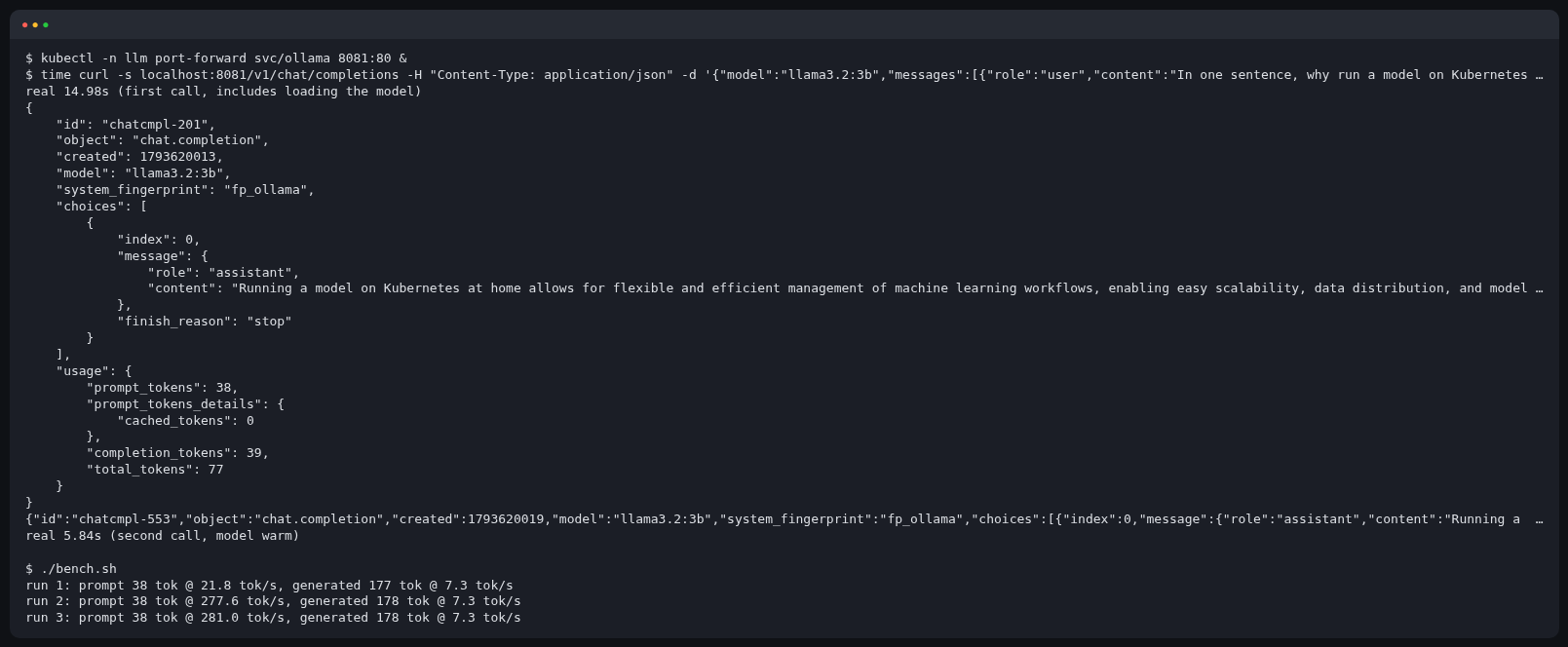
time curl -s localhost:8081/v1/chat/completions -H "Content-Type: application/json" \
  -d '{"model":"llama3.2:3b","messages":[{"role":"user","content":"In one sentence, why run a model on Kubernetes at home?"}]}' | jq
That prints the whole response. jq -r '.choices[0].message.content' prints just the answer, which is what the GPU tabs show.
real 14.98s (first call, includes loading the model)
{
  "id": "chatcmpl-201",
  "object": "chat.completion",
  "created": 1793620013,
  "model": "llama3.2:3b",
  "system_fingerprint": "fp_ollama",
  "choices": [
    {
      "index": 0,
      "message": {
        "role": "assistant",
        "content": "Running a model on Kubernetes at home allows for flexible and efficient management of machine learning workflows, enabling easy scalability, data distribution, and model versioning, all within a familiar and accessible environment."
      },
      "finish_reason": "stop"
    }
  ],
  "usage": {
    "prompt_tokens": 38,
    "prompt_tokens_details": {
      "cached_tokens": 0
    },
    "completion_tokens": 39,
    "total_tokens": 77
  }
}
The second identical call took 5.84 seconds, because the model was already in memory.
$ curl -s localhost:8081/v1/chat/completions ... | jq -r '.choices[0].message.content'
real 14.00s (first call, includes loading the model)
Running a model on Kubernetes at home allows you to easily manage, scale, and deploy machine learning models, provide a test environment for data scientists or developers, and potentially save time and resources in production environments.
$ curl -s localhost:8081/v1/chat/completions ... | jq -r '.choices[0].message.content'
Running a model on Kubernetes at home allows for low-cost, flexible, and portable deployment of AI and machine learning workloads, enabling efficient testing, training, and deployment of models on small-scale hardware before scaling up to larger cluster environments.
The first call, model load included, came back in 3.6 seconds.
$ curl -s localhost:8081/v1/chat/completions ... | jq -r '.choices[0].message.content'
Running a model on Kubernetes at home allows for greater control, scalability, and deployment flexibility, allowing for a more seamless and efficient development and testing experience for machine learning projects.
The first call includes loading the model onto the GPU, so it's the slow one. On the T4 it took 85 seconds; the second identical call came back in 0.4 seconds.
How fast is it?
bench.sh in the repo asks the same question three times through Ollama's native API and reads its own timing counters. It reports two speeds in tokens per second (tok/s; a token is roughly three quarters of a word): prompt, how fast it reads your input, and generated, how fast it writes the answer. Generated is the one you feel.
./bench.sh http://localhost:8081
run 1: prompt 38 tok @ 21.8 tok/s, generated 177 tok @ 7.3 tok/s
run 2: prompt 38 tok @ 277.6 tok/s, generated 178 tok @ 7.3 tok/s
run 3: prompt 38 tok @ 281.0 tok/s, generated 178 tok @ 7.3 tok/s
7.3 tokens/sec on 4 requested cores. Readable, but you'll be watching it type.
run 1: prompt 38 tok @ 50.2 tok/s, generated 181 tok @ 20.9 tok/s
run 2: prompt 38 tok @ 592.9 tok/s, generated 182 tok @ 21.0 tok/s
run 3: prompt 38 tok @ 590.0 tok/s, generated 182 tok @ 20.5 tok/s
About 21 tokens/sec, roughly 3× the CPU path on the same laptop, with the same model and pod limits. Check the offload lines:
$ kubectl -n llm logs deploy/ollama | grep -E "offloaded|Vulkan0 (model|KV)"
load_tensors: offloaded 29/29 layers to GPU
load_tensors:      Vulkan0 model buffer size =  1918.35 MiB
llama_kv_cache:    Vulkan0 KV buffer size =   896.00 MiB
All 29 layers on the GPU, and an 896 MiB KV cache at the 8192-token context. /api/ps reports 3.1 GB of GPU memory in use.

run 1: prompt 38 tok @ 1800.3 tok/s, generated 177 tok @ 82.6 tok/s
run 2: prompt 38 tok @ 3277.0 tok/s, generated 179 tok @ 85.2 tok/s
run 3: prompt 38 tok @ 3087.2 tok/s, generated 179 tok @ 85.8 tok/s
About 85 tokens/sec (90 on an earlier run with Ollama's default context). That's a different machine from the laptop, so read the three numbers as a rough ranking, not a ratio: CPU 7, Arc 21, Radeon 85. Check the offload lines:
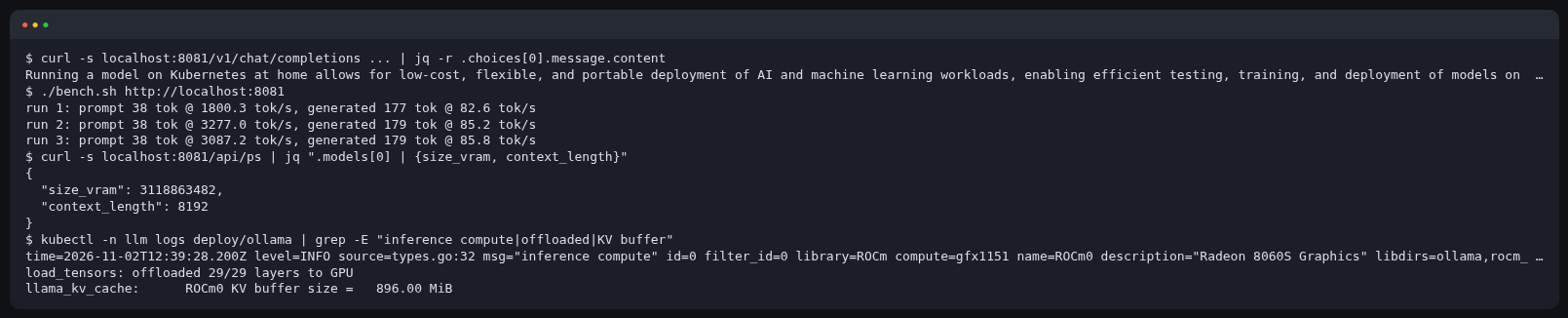
offloaded 29/29 layers to GPU, ROCm0 KV buffer size = 896.00 MiB (it was 14,336 MiB before setting OLLAMA_CONTEXT_LENGTH), and /api/ps reports the model using 3.1 GB of GPU memory with an 8192-token context.
run 1: prompt 38 tok @ 1805.7 tok/s, generated 179 tok @ 89.1 tok/s
run 2: prompt 38 tok @ 3435.2 tok/s, generated 179 tok @ 88.8 tok/s
run 3: prompt 38 tok @ 3309.5 tok/s, generated 179 tok @ 89.1 tok/s
About 89 tokens/sec on a Tesla T4, with the pod requesting 2 cores. Check the offload lines:
$ kubectl -n llm logs deploy/ollama | grep -E "offloaded|CUDA0 (model|KV)"
load_tensors: offloaded 29/29 layers to GPU
load_tensors:        CUDA0 model buffer size =  1918.35 MiB
llama_kv_cache:      CUDA0 KV buffer size =   896.00 MiB
All 29 layers on the GPU. If it says anything less than all layers, part of the model is on the CPU and you'll feel it. /api/ps reports 3.1 GB, all of it in VRAM, and nvidia-smi on the host shows Ollama's llama-server using 3,096 MiB.
Step 5: your model debugs your cluster
You've got a model serving inside your cluster. Now put it to work on that cluster. First you'll see what k8sgpt finds on its own, then you'll hand its findings to your model to explain.
Clusters break. So let's break this one, with a typo in the image tag, about the most common mistake there is:
kubectl -n llm set image deploy/ollama ollama=ollama/ollama:0.40.13-typo
kubectl -n llm get pods
deployment.apps/ollama image updated
NAME                      READY   STATUS             RESTARTS   AGE
ollama-7668db698b-ssmt8   0/1     ImagePullBackOff   0          44s
Because the Deployment uses Recreate, the old pod is already gone. Your model is down.
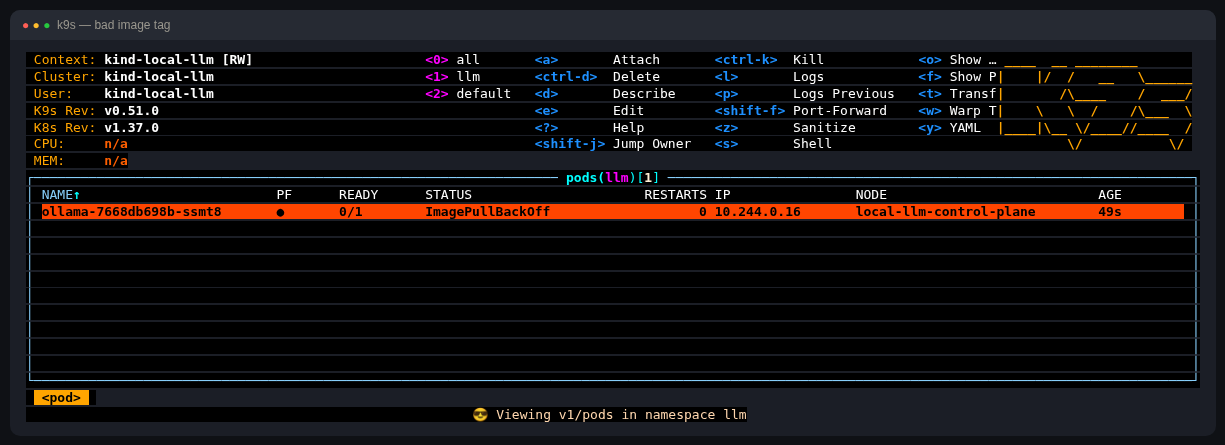
The old way is kubectl describe and reading the events:
$ kubectl -n llm describe pod/ollama-7668db698b-ssmt8 | sed -n '/Events:/,$p'
Events:
  Type     Reason     Age               From               Message
  ----     ------     ----              ----               -------
  Normal   Scheduled  45s               default-scheduler  Successfully assigned llm/ollama-7668db698b-ssmt8 to local-llm-control-plane
  Normal   Pulled     44s               kubelet            spec.initContainers{pull-model}: Container image "ollama/ollama:0.40.13" already present on machine and can be accessed by the pod
  ...
  Warning  Failed     5s (x3 over 42s)  kubelet            spec.containers{ollama}: Failed to pull image "ollama/ollama:0.40.13-typo": rpc error: code = NotFound desc = failed to pull and unpack image "docker.io/ollama/ollama:0.40.13-typo": failed to resolve reference "docker.io/ollama/ollama:0.40.13-typo": docker.io/ollama/ollama:0.40.13-typo: not found
  Warning  Failed     5s (x3 over 42s)  kubelet            spec.containers{ollama}: Error: ErrImagePull
k8sgpt does that across the whole namespace and joins up the knock-on effects. It's in bin/ from the setup step:
k8sgpt analyze --kubeconfig ./kubeconfig --namespace llm
AI Provider: AI not used; --explain not set

0: Deployment llm/ollama()
- Error: Deployment llm/ollama has 1 replicas but 0 are available with status running

1: Service llm/ollama()
- Error: Service has not ready endpoints, pods: [Pod/ollama-7668db698b-ssmt8], expected 1

2: Pod llm/ollama-7668db698b-ssmt8(Deployment/ollama)
- Error: Back-off pulling image "ollama/ollama:0.40.13-typo": ErrImagePull: rpc error: code = NotFound desc = failed to pull and unpack image "docker.io/ollama/ollama:0.40.13-typo": failed to resolve reference "docker.io/ollama/ollama:0.40.13-typo": docker.io/ollama/ollama:0.40.13-typo: not found
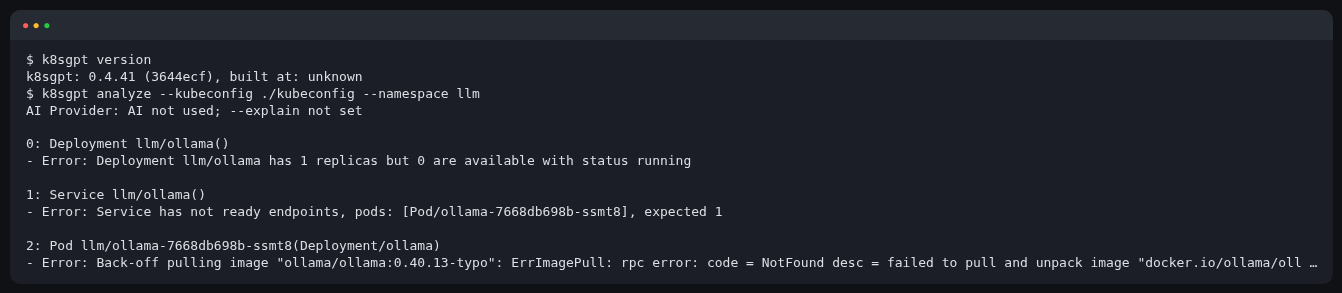
On Kubernetes 1.37, k8sgpt 0.4.41 also prints a warnings.go:70] v1 Endpoints is deprecated in v1.33+; use discovery.k8s.io/v1 EndpointSlice line before its results. That's the API server warning about an old API k8sgpt still reads, and it's harmless.
No AI involved yet: those are k8sgpt's built-in analyzers. Three findings, one cause: the pod can't pull, so the Deployment has nothing available, so the Service has no endpoints, so your curl fails. Roll back and check again:
kubectl -n llm rollout undo deploy/ollama
kubectl -n llm rollout status deploy/ollama
k8sgpt analyze --kubeconfig ./kubeconfig --namespace llm
deployment.apps/ollama rolled back
...
deployment "ollama" successfully rolled out
AI Provider: AI not used; --explain not set

No problems detected
(kubectl warns that rollout undo doesn't update the last-applied annotation. In real life, fix the YAML and kubectl apply -f it again.)
The port-forward from step 4 was attached to the old pod, which is gone, so it died with it. Start it again:
kill %1 2>/dev/null; kubectl -n llm port-forward svc/ollama 8081:80 &
Now let your model explain the next one
k8sgpt can send its findings to an LLM for an explanation, and you now have one. Break something else, the usual mistake with gated models: manifests/break/missing-secret.yaml creates a pod called model-downloader that reads a Hugging Face token from a secret nobody created.
kubectl apply -f manifests/break/missing-secret.yaml
k8sgpt auth add --backend ollama --model llama3.2:3b --baseurl http://localhost:8081
time k8sgpt analyze --kubeconfig ./kubeconfig --namespace llm --explain --backend ollama
If you've used k8sgpt before and already have an ollama backend, auth add says Provider with same name already exists. Point the existing one at this server instead: k8sgpt auth update --backend ollama --model llama3.2:3b --baseurl http://localhost:8081.
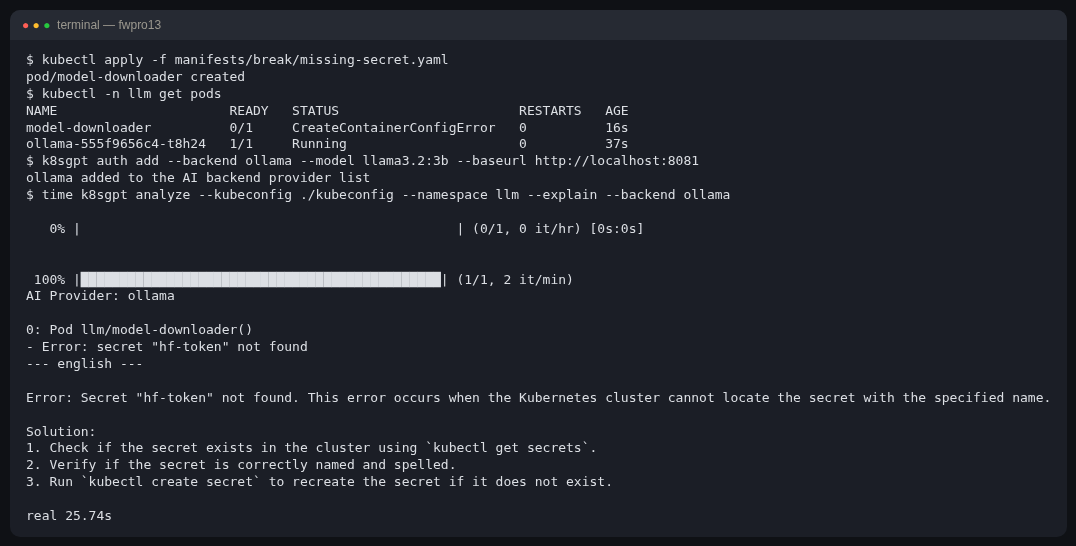
No API key, and nothing left the machine. A 3B model's advice is generic, but it's right, and it took 26 seconds on CPU. On the T4 it took 85 seconds, because the rollback had started a new pod and this was its first request, so it included loading the model onto the GPU. In k9s the pod sits in CreateContainerConfigError:
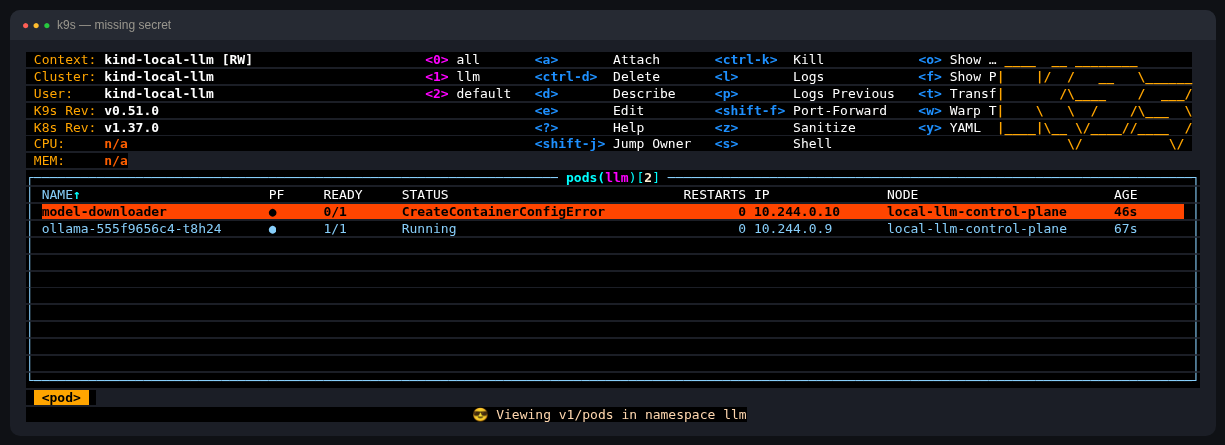
Clean it up with kubectl -n llm delete pod model-downloader.
Where next
That's a model server, a GPU exposed through a device plugin, a Service in front, and something to tell you when it breaks. On a real cluster, each piece has a bigger version:
- Dynamic Resource Allocation (DRA). Device plugins only let a pod ask for "one GPU". DRA lets it ask for a GPU with particular properties, and share or partition it: Kubernetes v1.37 DRA updates, DRA docs. Intel already ships a DRA driver (intel-resource-drivers-for-kubernetes), and
llmfit claimcan generate a ResourceClaim sized for a model. - Gateway API Inference Extension. Once you've got more than one replica, round-robin load balancing is the wrong answer for LLMs. This routes on queue depth and KV-cache state: gateway-api-inference-extension.sigs.k8s.io.
- KServe. A proper serving layer: model CRDs, autoscaling, canaries. kserve.github.io.
- llm-d. Distributed inference on Kubernetes, built on vLLM and the inference gateway. It hit 1.0 in October: llm-d.ai.
- Kueue. Queueing and quotas for when several people or jobs want the same GPUs: kueue.sigs.k8s.io.
- Sympozium. For agents that use the model. Sympozium is another of my projects. It runs agents on Kubernetes, each in its own workload, with policy as CRDs, and you can point it at this Ollama endpoint. It's early, so expect things to change.
Next steps
Everything in this guide is one Ollama pod doing all the work. It loads the model, reads your prompt (prefill), then generates the answer one token at a time (decode), all on the same GPU or CPU. That's fine for one person on a laptop. The obvious next moves are swapping Ollama for vLLM or the llama.cpp server, then running more than one replica behind the Service, with the Gateway API Inference Extension above doing the routing.
After that comes disaggregated inference. Prefill and decode stress the hardware differently: prefill is compute-heavy, decode is mostly waiting on memory. So you split them onto separate workers or GPUs, hand the KV cache (the model's working memory for the prompt) from one to the other, and scale each side on its own. That's what llm-d, vLLM's disaggregated prefill, NVIDIA Dynamo and SGLang are working on. I haven't run any of that for this guide, and I may write it up sometime. If you want that, watch the repo or open an issue and tell me.
Cleaning up
kind delete cluster --name local-llm --kubeconfig ./kubeconfig
That removes the node container and everything in it, model included. Your other clusters and your main kubeconfig are untouched, because this one only ever lived in ./kubeconfig.
Versions
Versions verified on 2 November 2026, against each project's latest release.
| Component | Pinned here | Notes |
|---|---|---|
| kind | v0.33.0 | latest release |
| Kubernetes (kind node image) | v1.37.0, kindest/node:v1.37.0@sha256:a1ed56cfb0e7b93589bdf97c8cd566405a265939e3620fc4f5de89adff580ae5 | newest kind node image; upstream Kubernetes is v1.37.2, and kind hasn't published a newer image yet |
| kubectl | v1.37.2 | latest release; a 1.36 or 1.37 client works against a 1.37 server (1.38 is in alpha) |
| Helm | v4.3.1 | latest release |
| Ollama | 0.40.13 (ollama/ollama:0.40.13, :0.40.13-rocm) | latest release |
| llmfit | 1.1.18 | latest release (github.com/AlexsJones/llmfit) |
| k8sgpt | 0.4.41 | latest release |
| k9s | v0.51.0 | latest release |
| Intel GPU device plugin | v0.37.1 | latest release |
| NVIDIA device plugin | 0.20.1 | latest release |
| NVIDIA GPU Operator | v26.7.2 | latest release |
| nvkind | commit c570504 | no tagged releases; latest commit on main |
| AMD (ROCm) device plugin | 1.31.0.11 | latest release |
| AMD GPU Operator | v1.5.1 | latest release |
Spotted something wrong? Tell me
If a step didn't work for you, or you ran it on different hardware and want to tell me how it went, use the contact form on axjns.dev.